Minggu, 17 Oktober 2010

Disabling Remote Desktop connection


The Remote Desktop feature of Windows XP is a great way to be able to access your
computer when you are away from the office or home. However, if you have poor computer security, the Remote Desktop also is a great way for anyone to be able to access and control your whole computer. Remote Desktop is a very risky application to leave exposed to the world. Its security relies solely on your account password, which for most users is easy to guess.

If you do not use Remote Desktop, then it would be a good idea to disable the feature. Doing so is a snap. Just follow these steps to turn it off:

1. Right-click the My Computer icon on the desktop or in the Start Menu and select
Properties.

2. Click the Remote tab to expose the remote access settings.

3. Next, uncheck the box under Remote Assistance.

4. Uncheck the box under Remote Desktop as well.

5. Click OK to save your changes.

When Remote Desktop connections are disabled, you have one less thing to worry about namely, someone having the ability to break into your computer.

Disabling Messenger Service


Microsoft has included a service in the last few versions of Windows that allows system administrators to send pop-up messages to all computers on a local network. This service can be an invaluable resource for administrators who want to get the word out about some upcoming server maintenance. For example, end users would see a message pop up on their screens that notifies them that the work group file server will be inaccessible for the next hour while routine maintenance is performed.

This is a great service n when it is used correctly. Unfortunately, the Messenger Service has been abused. Just because any user can send messages to the entire work group doesn't mean that she or he should. This capability is sometimes not a good thing. Users that are part of large local area network, such as just about every Internet user, can send out a mass message to all users in the same subnet. As you can imagine, some users that know how to use the service have started to
abuse it by sending spam to all the users in their same subnet. Nowadays, you may get spam not only in your inbox but also in a pop-up window that could appear at any time.

The Messenger Service, just like any other service or program that is accessible to the outside world, increases your security risk. Although there is currently not an exploit for the Messenger Service that allows remote users to execute commands on your computer, who knows what the future will hold? To be safe, it is best to just disable this service. You will also be cutting down on a new type of spam.

Disabling the Messenger Service can be done by using the Service Manager. Follow these steps to get started:

1. Click the Start button and select Run.

2. Key in services.msc in the box and click OK.

3. The Services Manager will load. Scroll though the list and right-click Messenger and select Properties.

4. Change the Startup Type to Disabled.

5. Click the Stop button and then click OK to save your changes.

Now the Messenger Service is one less thing to worry about. You can kiss the annoying pop-up text ads goodbye and also reduce your risk for an attack in the future.

Disabling Remote Registry Access


As already mentioned, the System Registry is one of the most important parts of the operating system. It's where all of the system settings and configuration data is stored. If you do not know what you are doing and you just start editing entries found in the System Registry, you can render your computer useless. So, protecting your computer's registry is very important.

Included with Windows XP Professional (not Windows XP Home) is a service that allows users with administrative privileges to connect your computer's registry and edit it. Having this service enabled and running is just way too big a security risk. The vast majority of computer users have little or no use for this service. Why would you even want to give anyone a chance at trying to break into one of the most critical parts of the operating system?

Disabling this service is a snap. Just follow these steps:

1. Click the Start button and select Run.

2. Key in services.msc in the box and click OK to launch the services manager.

3. Scroll through the list and right-click and select Properties on the Remote Registry entry.

4. Set the Startup Type as Disable and click the Stop button.

5. Click OK to close and save your changes.

Now you have knocked off yet another unneeded service from your computer.

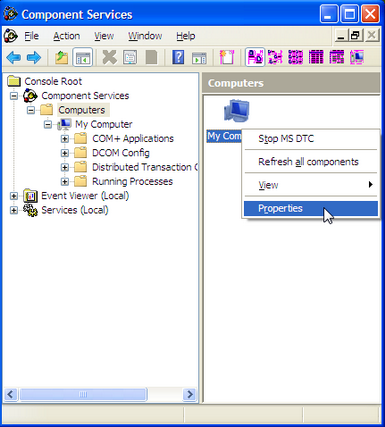
Disable DCOM support


The Distributed Component Object Model, or DCOM, is yet another feature that was built into Windows that has caused a great deal of problems. Sure, it provides an acceptable programming interface for programmers who are trying to write network apps, but there are better ways to do that than to use a DCOM.

DCOM has presented quite a few problems in terms of security. Exploits have been discovered for it that have allowed an Internet worm to spread to hundreds of thousands of Windows machines worldwide. Additionally, a very small number of applications actually use DCOM. In all of my computing experience, I have only seen one application that used DCOM, and that was an inventory and store management software suite. Home and professional PC users probably will never even use an application that uses DCOM.

So why is it on your computer? DCOM was one of Microsoft's attempts to please software developers. However, this attempt has clearly failed, and yet they still include it. The only thing that it has given to operating systems such as Windows XP is headlines in the newspapers about how some worm exploited it and has now infected thousands of PCs.

Disabling the Distributed Component Object Model is a good idea for most computing users. That is, it is for everybody except the rare few who actually have an application that the developers wrote using DCOM. To shut down DCOM and increase the security of your computer, follow these steps:

1. Gibson Research has come up with another cool utility to take care of Windows security shortcomings. This one is called DCOM bobulator and will help you disable DCOM on your computer. Visit www.grc.com/dcom/ and download a copy.

2. Start up DCOM bobulator and click the tab labeled DCOM bobulator Me!

3. Click the Disable DCOM button.

4. Click the Exit button and you are finished.

If you find that you are forced to use a program that needs DCOM, just run the utility again and click the Enable DCOM button on the DCOM bobulator Me! tab.

Using WEP for secure communication


Wired Equivalent Privacy, or WEP, is the first security standard for wireless networks. The basic concept for WEP security is to encrypt the data that is sent back and forth between the access point and the client adapter. This is done using various degrees of encryption strength. A special key, known as the encryption key, is used by computers to connect to a WEP-protected wireless network. This allows the client computer's adapter to be able to decrypt and also send
encrypted messages in the same language as the base station.

This standard sounds like a great way to secure a wireless network. However, it presents some flaws. The largest one is that the whole system relies on just one key. If someone's laptop is stolen that is part of a corporate network, the encryption key must be changed for the base station and for all of the other computers using the wireless connection. This change is necessary because the current encryption key could be easily extracted from the system settings.
Additionally, someone can potentially derive the encryption key by carefully analyzing the data they intercepted.

If you have a wireless base station, I highly recommend that you enable WEP to protect your home. Setting up WEP is different on every set of hardware, but the following are the basics:

1. Connect to your base station setting remotely using your Web browser. This address and port number varies, but usually is http://192.168.1.1 or http://192.168.2.1. Often, the port number is changed to 8080 so people donÕt think you have a Web server running. In that case, try http://192.168.1.1:8080 or http://192.168.2.1:8080.

2. Once you connect, you usually are asked for a password. For all Linksys hardware, the Username field is left blank and the password is admin. Other hardware manufacturers use some sort of a variation of the above. It also would be a good idea to change the password to something other than admin when you are working in the administration settings.

3. Locate the WEP settings and specify the encryption strength in bits. Then, come up with an encryption key and type that in. Write down your encryption key and strength for use in step 5.

4. Save your changes. You can now close the Web administration site.

5. The last part of setting up WEP is configuring the client computers that will connect to the base station. Once again, this information varies, depending on your wireless card. Consult the manual for your card to find out how to set up your card to use WEP.

Setting up WEP will greatly increase the security of your wireless network. Even though there are some flaws, it is much better than using no protection at all. It has the same effect as a car alarm. If a burglar has to choose between a car that clearly has an alarm or one that doesn't, which one will they choose to break into?

Using WPA for a more secure wireless connection


Wi-Fi Protected Access, or WPA, is a new, improved security standard for wireless connections. WPA has addressed the weaknesses of WEP; it was developed to create a viable alternative to WEP that is more secure than that standard. The fundamentals are the same between the standards, but WPA has improved some of the various mechanisms that plagued WEP. For example, encryption keys are now dynamic and change often automatically. Additionally, the complexity of the encryption key has also been increased to help fight off users who try to derive a key from data that they capture. One of the largest improvements in WPA is the addition of authentication to the wireless connection. Now, users have to have the right encryption settings, as well as a valid username and password, to gain access to the network.

This new standard is just starting to gain momentum. Microsoft has released a special patch for Windows XP that adds this new standard to Windows. However, installing the patch will not allow you to use this new standard. Just as with WEP, WPA is programmed into the firmware of the hardware components. In order to use WPA, you must have hardware that specifically supports it. Currently, only a few companies offer base stations and wireless adapters that support this new method of security. However, that will change in time.

The next time you are considering purchasing a wireless base station and adapter, do some research and pick one that supports WPA to ensure that your wireless communications will not be decrypted and your privacy is secure.

Assign password and rename the guest account


Windows XP includes a guest account that is disabled by default. However, at some time, this account may be enabled by an application. If you have Windows XP Professional, I recommend that you disable this account using the old Windows 2000 Local User and Group application. Just in case it becomes enabled again, I recommend that you rename the guest account and also assign it a password. Follow these steps to disable the guest account:

1. Click the Start button and select Run.

2. Key in lusrmgr.msc and click OK.

3. The Local User and Group application will launch. click on user account and Right-click the Guest username and select Set Password.

4. You will be prompted with a warning screen. Just click Proceed.

5. Type a complex password in both boxes and click OK.

6. The password has now been set. Next, rename the account by right-clicking it and selecting Rename.

7. Type in a new name, such as Disabled, and click Enter to save the changes.

The vulnerable guest account is now less of a problem.